What are the entries in the sidebar and what is each for?
The sidebar has 14 entries, in this order: Dashboard, New Search, AI Agent, Resurrect a List, Outreach Queue, Call Mode, Monitored Markets, Search History, Pipeline, Clients, Playbook Market, Email Templates, Training and Settings. Below the list sit the searches meter, a Help Center → link, a Fulfill work on Legiit.com → link, your name and Sign Out.
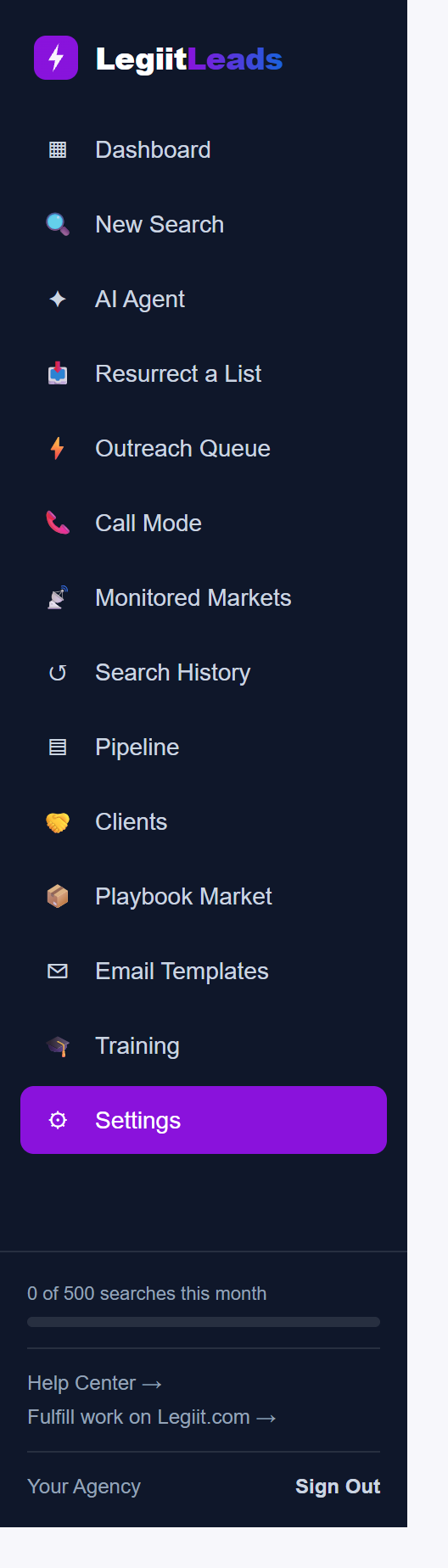
What each entry is for
- Dashboard: your home page. Find local businesses with real, verified problems, then sell the fix and fulfill it on Legiit.
- New Search: pick the problems you can fix, and Legiit Leads finds local businesses that verifiably have them.
- AI Agent: describe what you sell in plain English and the AI builds and runs the right search for you.
- Resurrect a List: upload any old CSV list. Every row is re-audited live, dead sites are flagged and every email is checked.
- Outreach Queue: your 10 minute daily ritual. Approve, edit or skip the drafted email sequences one lead at a time.
- Call Mode: the phone lane. Leads with real numbers, openers built from their verified evidence and one-tap outcomes.
- Monitored Markets: claim a territory. It is rescanned weekly and you are alerted the moment a buying window opens. Each scan is a full live search, so it uses 1 of your monthly searches.
- Search History: a table of every search you have run, with its keywords, location, lead count and status, plus a Filter… box to find one quickly.
- Pipeline: the drag-and-drop board of deals you are working. Every card shows what actually went out.
- Clients: won deals graduate here, with tracked keywords, competitors, services and retainer. Promoting a won deal to a client is on Agency Pro and Agency Empire.
- Playbook Market: buy and sell agency-in-a-box templates that include the fulfillment recipe.
- Email Templates: your saved templates. Mark one as the day 0, 3 or 7 skeleton and the Outreach Queue keeps its structure while filling in each lead's real evidence.
- Training: how to get the most out of Legiit Leads, from first search to closed deal.
- Settings: your profile, which powers AI personalization in every email and brief.
The footer
Under the list, the searches meter shows how many searches you have used this month out of your plan's allowance. It only appears once your account is on a plan.
Help Center → opens the Legiit Leads help centre in a new tab.
Fulfill work on Legiit.com → opens legiit.com in a new tab, the marketplace where you can order the work you have sold. To connect your own Legiit account and place orders without leaving the app, use the Legiit Marketplace card in Settings.
Your name (or your email address, if you have not set a name) and Sign Out sit at the very bottom. Sign Out signs you out of this device only, so a phone or another browser you are signed in on stays signed in.
Good to know
- The active entry is highlighted purple, so you can always see which page you are on.
- On a short window, such as a small laptop or a zoomed-in browser, the list scrolls while the logo at the top and the footer stay in place.
- On a phone the same list opens from the ☰ Menu button in the top bar.
Still stuck?
A real person on the Legiit team will help. No bots, no runaround.
Contact Supporthelp@legiit.com