How do I build a search with the AI Agent?
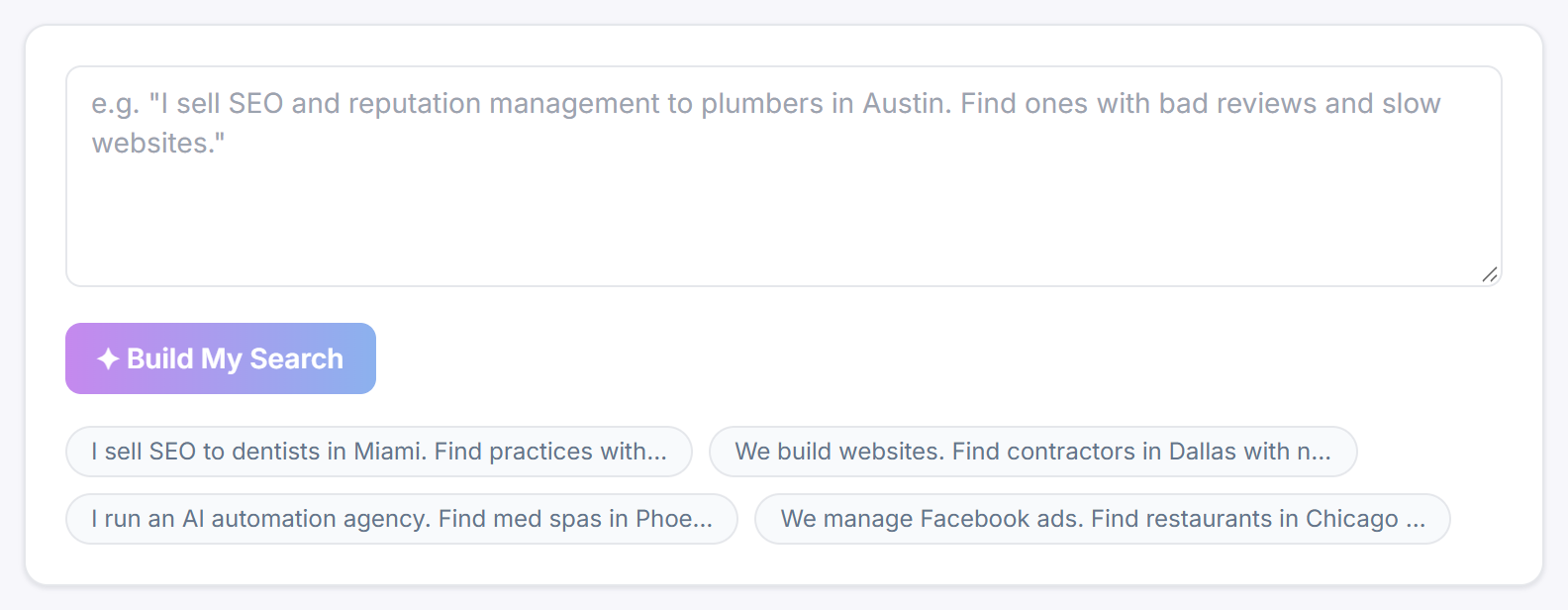
Click AI Agent in the sidebar, describe who you sell to, where they are and what you sell in one sentence, then click ✦ Build My Search. The AI turns your sentence into a Search Plan (a business type, a city and the problems to look for), and nothing runs until you click Run This Search →. Building a plan uses none of your searches; running it uses 1, like any other search.
Steps
- Click AI Agent in the sidebar. The page is titled AI Agent Search.
- In the box, describe the businesses you want, where they are and what you sell, for example
I sell SEO to dentists in Miami. Find practices with weak websites I can pitch.To start from an example, click one of the 4 example prompts under the button. It fills the box with the full sentence, which you can then change. - Click ✦ Build My Search. The button stays greyed out until the box has text, and reads Thinking… while the AI works.
- Check the Search Plan card that appears (explained below).
- Click Run This Search →. It reads Searching… for a moment, then the results page opens and leads appear as each website audit finishes, just like a search from New Search.
What the Search Plan shows
- Keywords: the business type that will be searched, such as
dentist. - Location: the city or area to search.
- Problems to look for: usually 2 to 5 purple pills. The AI picks them from the same list of problems you see on New Search, choosing the ones that best match what you sell.
- A short line in italics: one sentence from the AI explaining why it chose those problems.
The problems work the same way as on New Search: a business stays in your list when at least one of them shows up on it. See How do the problem filters decide which leads I get?
Changing the plan
You cannot edit the Search Plan on the page. You have two options:
- Rewrite your description (for example, name a different city or say more precisely what you sell) and click ✦ Build My Search again. The old plan is cleared and the AI builds a new one. If you change the text without building again, Run This Search → still runs the plan on screen.
- Copy the Keywords and Location into New Search and choose the problems and options yourself. See How do I run a new search?
Good to know
- An AI Agent search always runs with Only show leads with an email address found on their site switched off, and it does not email you the results as a CSV. Use New Search if you want either option.
- Like every search, it looks at up to 60 businesses before the problem filters are applied.
- In Search History, a search built by the AI Agent has a purple ✦ before its keywords. Hover over the star to see the sentence you typed.
- If the plan cannot be built, or Run This Search → is refused, a red message explains why. See Why did the AI Agent fail to build my search?
- The AI Agent is available on every plan.
Was this helpful?
Thanks, that helps us improve this article.
Still stuck?
A real person on the Legiit team will help. No bots, no runaround.
Contact Supporthelp@legiit.com