What are Team Seats and how do I invite a team member?
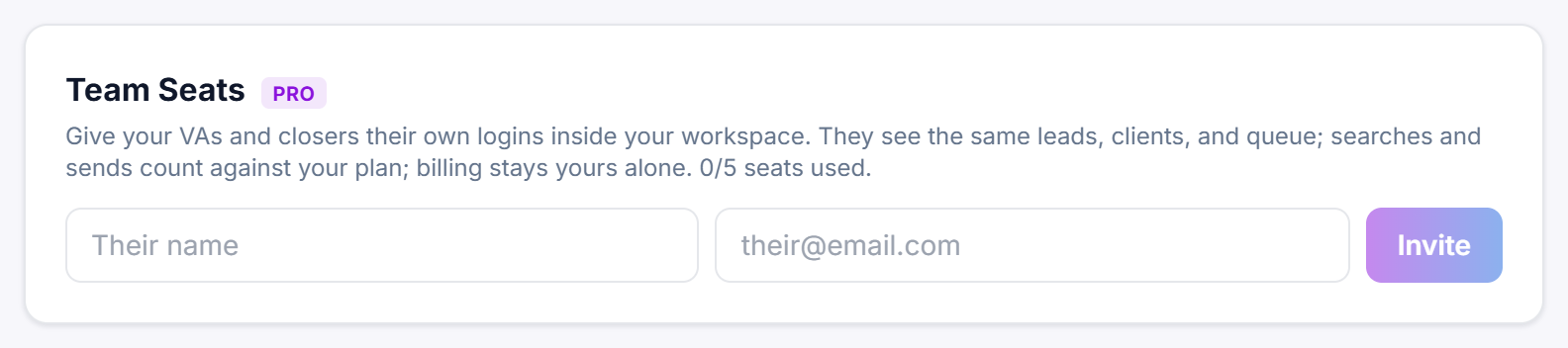
Team Seats give your VAs and closers their own logins inside your workspace, so they work on the same leads, clients and outreach queue you do. They come with Agency Pro and Agency Empire, 5 seats on each. To add someone, open Settings, find the Team Seats card, fill in the invite row and click Invite.
What a team seat is
A seat is not a separate account. Every search a seat runs, every lead they work and every email they send lands in your account, and their searches and sends count against your plan, exactly as the card says: they see the same leads, clients, and queue; billing stays yours alone.
Steps
- Open Settings from the sidebar and scroll to the Team Seats card. It carries a Pro badge, and the line under the heading ends with how many seats are taken, for example
2/5 seats used. - Type the person's name in Their name.
- Type their work email address in their@email.com.
- Click Invite. The button stays greyed out until the address contains an
@, and reads Inviting… while the login is created. - A purple line under the row confirms Invite sent to that address with a tick, and the new seat appears in the list above it.
The invite row only shows while you have a spare seat. At 5 of 5 it disappears until you remove someone.
Choose how much they can change
Every seat sits on one of two levels, set by the dropdown on their row: Full access or Outreach only. New seats start on Full access, and so does every seat you already had, so a person you invite today can do everything in the workspace except the owner-only things below.
Pick Outreach only for a VA you want working the queue and nothing else. They keep the leads, the drafts, the sends, the replies, Call Mode, the templates and every read, but your settings, mailboxes, domain, clients, markets and playbooks are closed to them. See how to limit what a team seat can do.
What your team member gets
They receive an email titled You've been added to your company name on Legiit Leads, headed Welcome to the team. It says you added them and that they will see the same leads, clients, and outreach queue as the rest of the team, and it carries a Set My Password button. They set a password, then sign in with their own email address and land in your workspace.
What a seat cannot do
The account stays yours. Seats do not see the Team Seats card, the Legiit Marketplace card or the SaaS Mode card in Settings, so a seat cannot invite or remove anyone, change your Legiit connection, or add or retire a plan you resell. Their Your Plan card simply reads Your plan is managed by the account owner. with no plan buttons and no billing buttons, so a seat can never buy, switch or cancel a plan.
A seat does see the Call Tracking card and whether your Twilio is connected, but they cannot take it away: Disconnect is refused and the card stays on ✓ TWILIO CONNECTED. On a lead, a seat is told to Ask the account owner to connect the Legiit account in Settings.
Those limits hold whatever level a seat is on. A seat set to Outreach only is held back from a good deal more.
Seats are never asked to buy a plan, so they never see the Your account is not on a plan yet, so searches are locked. banner, and the searches meter at the bottom of their sidebar counts your monthly usage rather than an allowance of their own.
Still stuck?
A real person on the Legiit team will help. No bots, no runaround.
Contact Supporthelp@legiit.com