How do I change my name, login email or password?
All three live in the Your Account card at the top of Settings. To change your name, edit Your Name and click Save Name, with no password needed. To change your login email or password, type your Current Password first, then click Change Email or Change Password.
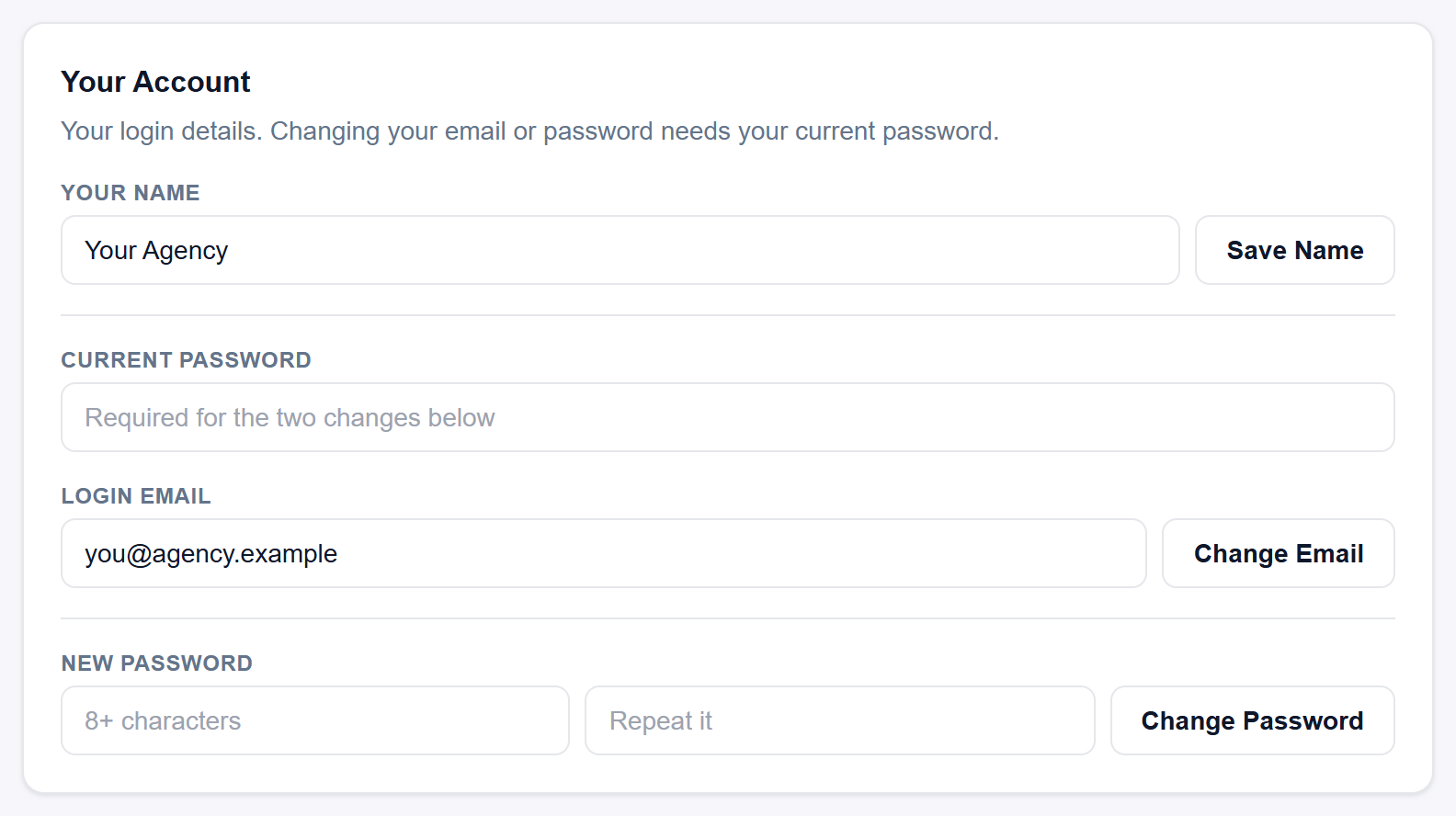
Change your name
- Click Settings in the sidebar. Your Account is the first card on the page.
- Edit Your Name.
- Click Save Name. The button stays greyed out while the box is empty, so you cannot save a blank name.
This name appears at the bottom of the sidebar, next to Sign Out. It is not the name your prospects see: that one is in the Your Agency card further down the page. See why there are two Your Name fields.
Change your login email
- In Your Account, type your password in Current Password.
- Replace the address in Login Email with the new one.
- Click Change Email. You will see Email updated. Use the new address next time you sign in.
The change takes effect straight away and needs no confirmation email. From then on you sign in with the new address, not the old one.
Change your password
- In Your Account, type your password in Current Password.
- Under New Password, type your new password in the box that reads 8+ characters, then type it again in the box that reads Repeat it.
- Click Change Password. You will see Password changed. You stay signed in here.
Your new password must be at least 8 characters long.
If it does not work
A short message appears at the bottom of the card for a few seconds, in red when something needs fixing:
- That current password is not right. The password in Current Password does not match your account. Retype it carefully, or read more about this message.
- Another account already uses that email. The new address already belongs to a Legiit Leads account. Choose a different address.
- The two new passwords do not match. The two New Password boxes are different. Type the same password in both.
- Use at least 8 characters. Your new password is too short.
- Enter your current password to change your email. or Enter your current password first. You left Current Password empty.
- That is already your email. The address in Login Email is the one you already sign in with.
- That email address does not look right. Check the new address for a typo.
Good to know
- Current Password empties itself after each successful email or password change, so type it again before the next change. If you change your password first, use the new password as your Current Password when you then change your email.
- Team members with their own seat can change their own name, login email and password in the same card. Their changes affect only their own login.
- If you have forgotten your current password, you cannot change it here. Sign out and use Forgot Password? in the sign-in box to reset your password.
Still stuck?
A real person on the Legiit team will help. No bots, no runaround.
Contact Supporthelp@legiit.com