How do I connect a mailbox for Autopilot?
In Settings, go to the Outreach Autopilot card, click + Connect A Mailbox, fill in your mailbox's sending details and click Connect And Verify. Legiit Leads signs in to your mail server there and then, and only saves the mailbox if that works, after which it shows a green CONNECTED badge. You can connect a mailbox on any plan; having Autopilot send from it needs Agency Pro or Agency Empire.
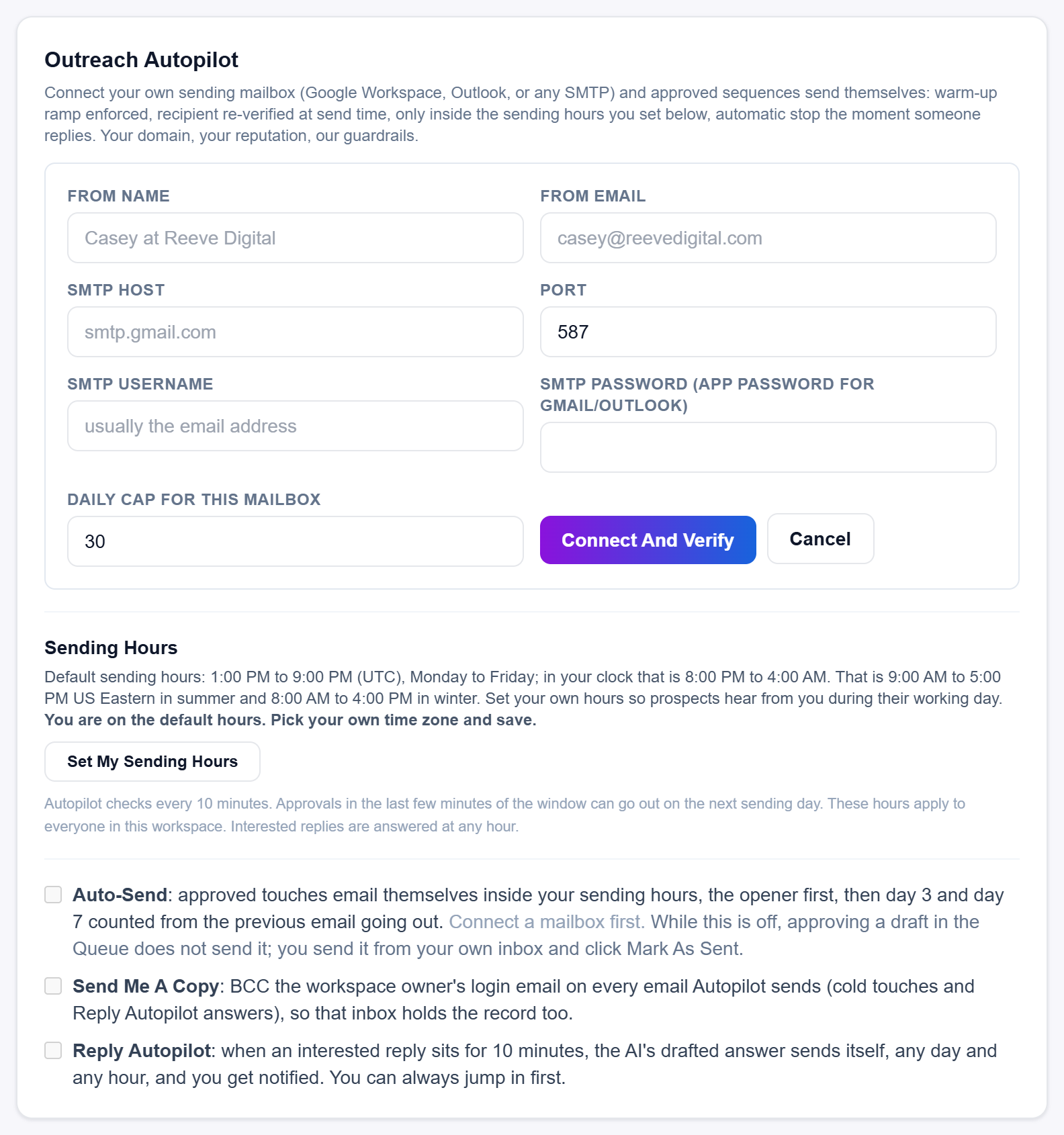
Steps
- Click Settings in the sidebar and scroll to the Outreach Autopilot card.
- Click + Connect A Mailbox.
- Fill in the fields (each one is explained below).
- Click Connect And Verify. The button reads Testing Connection… while it checks.
- When the check passes, the form closes and your address appears at the top of the card with CONNECTED and a count such as
0/30 sent today.
If the form shows a red message starting Could not connect: instead, see Why does Connect And Verify say Could not connect?
The fields
- From name: the name prospects see, for example
Casey at Reeve Digital. If you leave it blank, your email address is used. - From email: the address your emails come from.
- SMTP host: your provider's outgoing mail server, for example
smtp.gmail.comfor Gmail and Google Workspace. - Port:
587is filled in for you. See the ports below. - SMTP username: usually your full email address.
- SMTP password (app password for Gmail/Outlook): for Gmail and Outlook, create an app password in your email account's security settings and paste it here, not the password you sign in with.
- Daily cap for this mailbox: the most emails Autopilot sends from this mailbox in a day.
30is filled in. Pick a number from 5 to 100; anything above 100 is saved as 100.
Which port to use
The Port field accepts 25, 465, 587 and 2525.
587is the one to use for Gmail, Google Workspace and Outlook.465is for providers that ask for SSL.2525is the usual alternative port for email relay services.
On 25, 587 and 2525 the connection switches to encryption when your mail server offers it. On 465 it is encrypted from the start.
Good to know
- The check only signs in. It does not send a test email.
- Your password is stored encrypted and is never shown again in the app. To change a mailbox's password or cap, click Remove on it and connect it again.
- You can connect up to 10 mailboxes. Autopilot sends from the one with the most room left under its cap that day. See What is a mailbox's daily cap, and which mailbox does Autopilot send from?
- Connecting a mailbox does not send anything by itself. Autopilot starts only when you tick Auto-Send. See How do I turn on Auto-Send?
- If you work on a team seat set to Outreach only, Connect And Verify answers in red with Your seat is set to outreach only. Ask the account owner to change it. and nothing is saved. The account owner connects the mailbox; you can then send from it as usual. See what an outreach only seat can do.
Still stuck?
A real person on the Legiit team will help. No bots, no runaround.
Contact Supporthelp@legiit.com