How do I add my logo and accent colour, and where do they show?
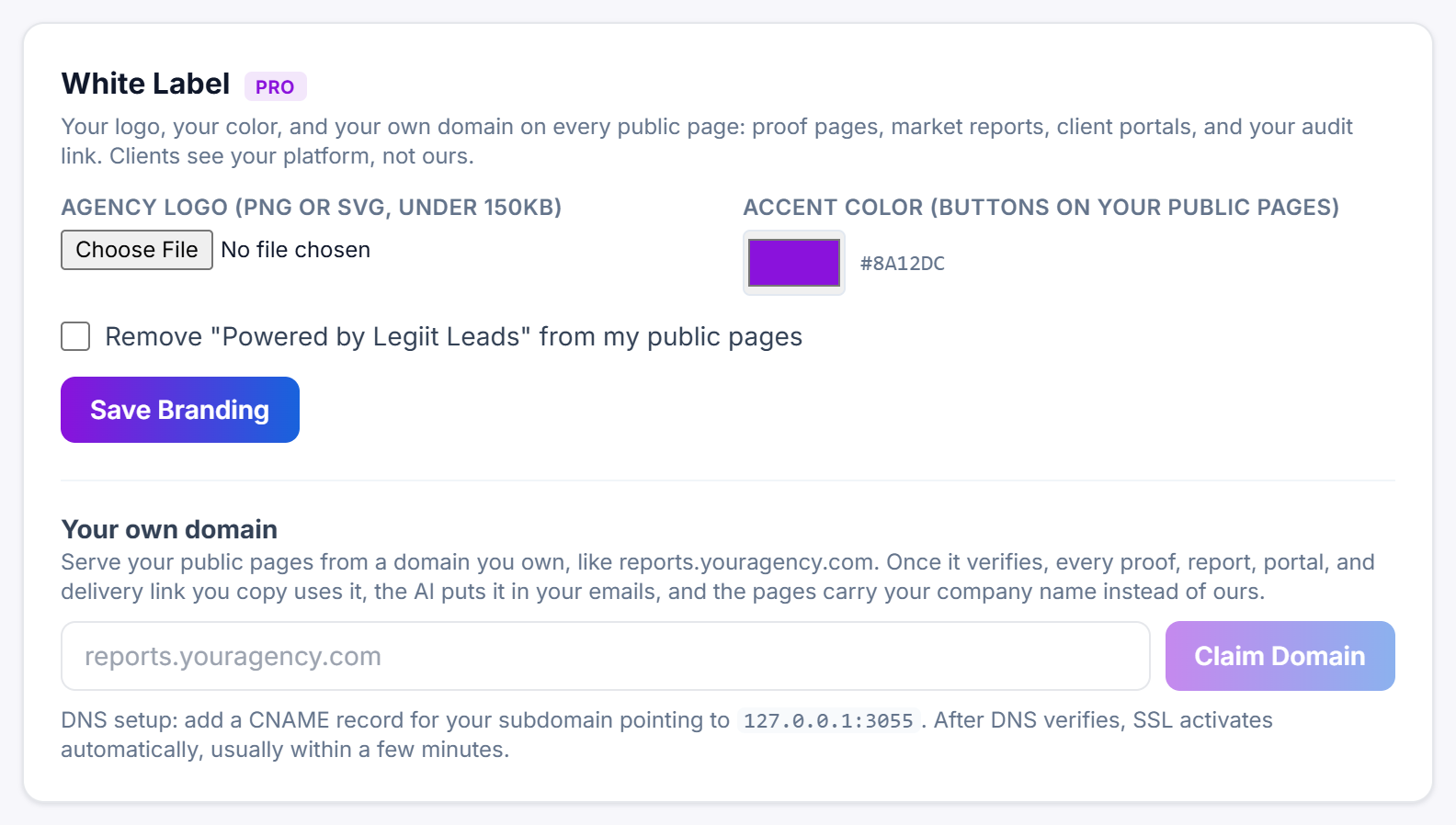
Your logo and accent colour live on the White Label card in Settings. Upload a logo, pick a colour, click Save Branding, and both show on the public pages your prospects and clients open. Setting a logo or an accent colour for the first time needs Agency Pro or Agency Empire, but an account that already has one saved keeps it and can still change it on any plan.
Steps
- Open Settings from the sidebar and scroll to the White Label card.
- Under Agency logo (PNG or SVG, under 150KB), choose your file. A small preview appears beside the file picker, and Remove clears that preview so you can choose a different file.
- Under Accent color (buttons on your public pages), click the colour swatch and pick your colour. The hex value sits next to the swatch and starts at
#8A12DC. - Click Save Branding. Saved ✓ appears beside the button for about 2 seconds.
Your public pages read the change the next time they load, so reload one to see it. To change a logo you have already saved, choose a new file and click Save Branding again.
There is no way to take a saved logo off again from Settings. Remove only clears the preview beside the file picker, and saving after it leaves the logo you last saved on your public pages, so upload a replacement instead.
What your plan allows
A logo and an accent colour are part of White Label, so the Agency Pro badge on the card covers them. On Agency Pro or Agency Empire, Save Branding works as described above.
On any other plan, if you have never had a logo or an accent colour saved, Save Branding is refused and a red line appears under the button: This is an Agency Pro feature. Upgrade in Settings for Client Command, Outreach Autopilot, White Label, and team seats. Nothing on the card is stored, and your public pages keep the standard Legiit Leads look until you move to Agency Pro or Agency Empire.
If your account already has a logo or an accent colour saved, it is still yours. It keeps showing on your public pages, and you can choose a new file, pick a different colour and click Save Branding whatever plan you are on. So the logo you are looking at in Settings right now is not going anywhere.
Where your logo and colour show
- Your branded audit page. Logo in the header above your company name, accent colour on the Check My Website button.
- State of the Market reports. Logo in the header above Market research by your company name, accent colour on the Get My Free Audit button.
- Grade pages shared from your audit page. Logo above Lead grade by your company name, accent colour on Grade Your Own Website Free. A grade page only carries your branding while the audit page it came from is switched on.
- Your SaaS Mode signup page. Logo above your company name, accent colour on each Choose plan button.
- Proof pages and client portals. Your logo at the top, and the footer signs the page with your company name. The buttons on those 2 pages keep their standard colours.
Sub-accounts that sign up through your SaaS Mode plans inherit your logo and colour automatically.
If the logo does not stick
A file over 150KB is refused before it uploads, and the card shows Logo must be under 150KB. Export a smaller PNG or SVG. A file just under that limit can still be too large to store once saved, so if the logo has vanished when you reload Settings, export it again nearer 100KB and save.
Logos are shown up to 48 pixels tall and 220 pixels wide, centred on a dark header, so a wide logo with a transparent background reads best.
About the accent colour
Whatever colour the swatch is showing is saved when you click Save Branding, including the #8A12DC it starts on. From then on the buttons listed above are one flat colour instead of the purple to pink gradient they start with, and Settings has no way to put that gradient back, so pick the colour you actually want.
The accent colour becomes the whole button background, so choose one that white text still reads well on.
Still stuck?
A real person on the Legiit team will help. No bots, no runaround.
Contact Supporthelp@legiit.com